Operating Systems
1. Autoruns
Autoruns has the most comprehensive knowledge of auto-starting locations of any startup monitor, shows you what programs are configured to run during system bootup or login, and shows you the entries in the order Windows processes them. These programs include ones in your startup folder, Run, RunOnce, and other Registry keys. You can configure Autoruns to show other locations, including Explorer shell extensions, toolbars, browser helper objects, Winlogon notifications, auto-start services, and much more. Autoruns goes way beyond the MSConfig utility bundled with Windows.
Task
- Download, extract the AutoRuns utility from https://kevincurran.org/com320/labs/operating%20systems/autoruns.zip.

- Move to the folder where it was extracted to and click on autorun.exe.
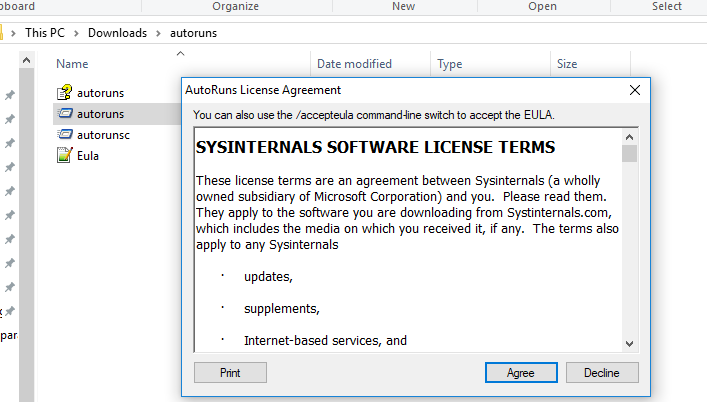
- You should see the following screen with excuting processes listed.
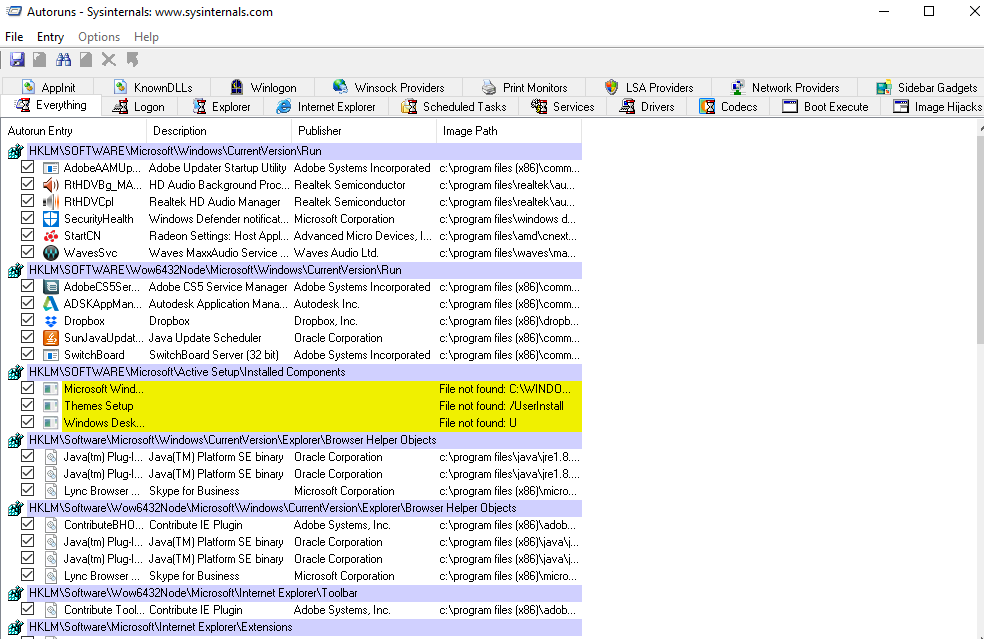
- Find out what programs are configured to run during system bootup or login. Do you recognize these programs? Identify the programs not provided by Microsoft that automatically start when you bootup or login.Note the Autoruns' Hide Signed Microsoft Entries option which helps you to zoom in on third-party auto-starting images that have been added to your system and it has support for looking at the auto-starting images configured for other accounts configured on a system.
2. Process Explorer
Process Explorer shows you information about which handles and DLLs processes have opened or loaded.The Process Explorer display consists of two sub-windows.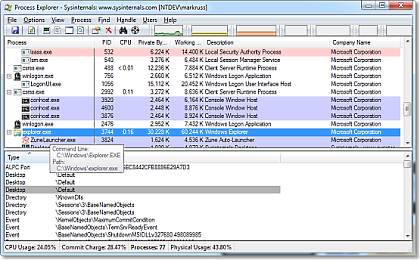
The top window always shows a list of the currently active processes, including the names of their owning accounts, whereas the information displayed in the bottom window depends on the mode that Process Explorer is in: if it is in handle mode you'll see the handles that the process selected in the top window has opened; if Process Explorer is in DLL mode you'll see the DLLs and memory-mapped files that the process has loaded. Process Explorer also has a powerful search capability that will quickly show you which processes have particular handles opened or DLLs loaded. Process Explorer is useful for tracking down DLL-version problems or handle leaks, and provide insight into the way Windows and applications work.
- Download, extract and run the Process Explorer utility from https://kevincurran.org/com320/labs/operating%20systems/ProcessExplorer.zip.. the process is similar to above. Note the directory which it extracts the files to.
- Choose a process, e.g. winword.exe and find out which DLLs it has loaded. Do this by starting Word (if not already running).
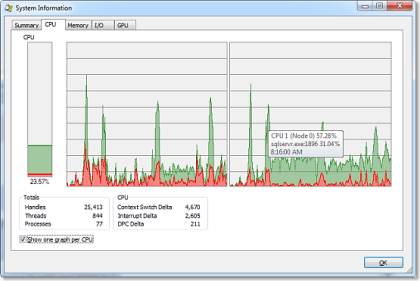
- Now click on the System Information button (Ctrl+I) to see details of CPU activity in your system.
- Now start a new program, e.g. Microsoft Excel. Watch how CPU usage changes when you start this program, a minute after you have started this program, and when you terminate this program.
- Click on System Information button (Ctrl+I) to see this information in detail.
- Download, extract and run the Process Explorer utility from https://kevincurran.org/com320/labs/operating%20systems/ProcessExplorer.zip.. the process is similar to above. Note the directory which it extracts the files to.