Viewing DHCP Client and DNS Client Status
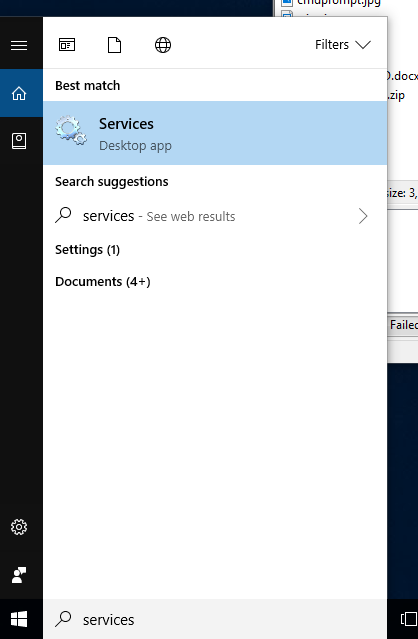
In this project, you use the Services control panel to view the status of DNS Client and DHCP Client services, and then use the command line to view the same information.- Click Start, type services.msc, and press Enter to start the Services control panel.
The Services control panel is somewhat different from the Services tab in Task Manager, which enables you to stop or start a service and view its status but not change other properties, such as its startup type or how it logs on to the system.

- Scroll down until you find the DHCP Client service.

- Notice that its status is Started. Double-click DHCP Client to open its properties.

- Click the Startup type list arrow to view the available options. You shouldn't disable or stop (unless you restart it again) the DHCP Client because it's used to register and update your computer's DNS record. So even if you aren't getting an IP address via DHCP, the DHCP Client should remain running. Above the Startup type list, notice the path to the executable file. When looking for the DHCP Client in the Processes tab in Task Manager, you should look for this path.
- Click the Log On tab. Most services are started by using a special account: Local Service, Local System, or Network Service. The password is automatically changed periodically for security reasons, so you shouldn't have to change it.

- Click the Recovery tab. You use this tab to specify what should happen if the service fails. In most cases, the service attempts to restart twice. You can specify actions for the computer to take (such as restarting) if the service encounters errors when trying to start.

- Click the Dependencies tab, where you can view other processes or services this service depends on to run and other processes or services that depend on this service. Before stopping a service you think you don't need, check the dependencies to make sure another service you do need isn not affected. Click Cancel.

- Next, examine the DNS Client properties. They're largely the same as for the DHCP Client, except that a different svchost.exe command is used to start DNS. Note also that the service's name is shown as Dnscache. When you are finished, close the Services control panel.
- Open a command prompt window. To view the status of services from the command line, you use the sc command.
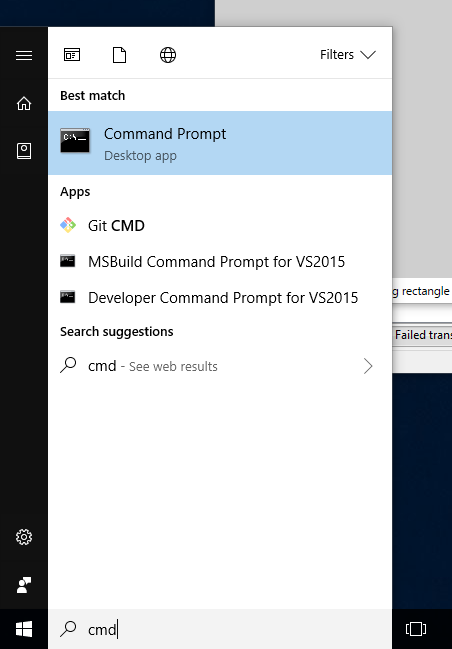
- Type sc query and press Enter to view the status of allrunning services. To view the status of DHCP, type sc query dhcp and press Enter, and to view the status of DNS, type sc query dnscache and press Enter.

- Sometimes restarting a service is necessary. A computer restart does this, but you can also do it in the Services control panel or from the command line. Type sc stop dhcp and press Enter. The status of DHCP is displayed as STOP—PENDING. (If you see the message "A stop control has been sent to a service that other running services are dependent on," try the sc stop dhcp command again until it's successful.)
- Type sc query dhcp and press Enter to see that DHCP has been stopped. Type sc start dhcp and press Enter to start the service again.
